Getting started
Using Kilito on your phone
The tab bar, the Add sheet, filters and how to put Kilito on your home screen.

Kilito is built to feel like a phone app. Everything you do at a desk also works on your phone, laid out for one hand.

The tab bar
Inventory: your items, tiles and status chips.
Scan: point the camera at any Kilito label to open that item's quick view. Tap Scan next item to keep going.
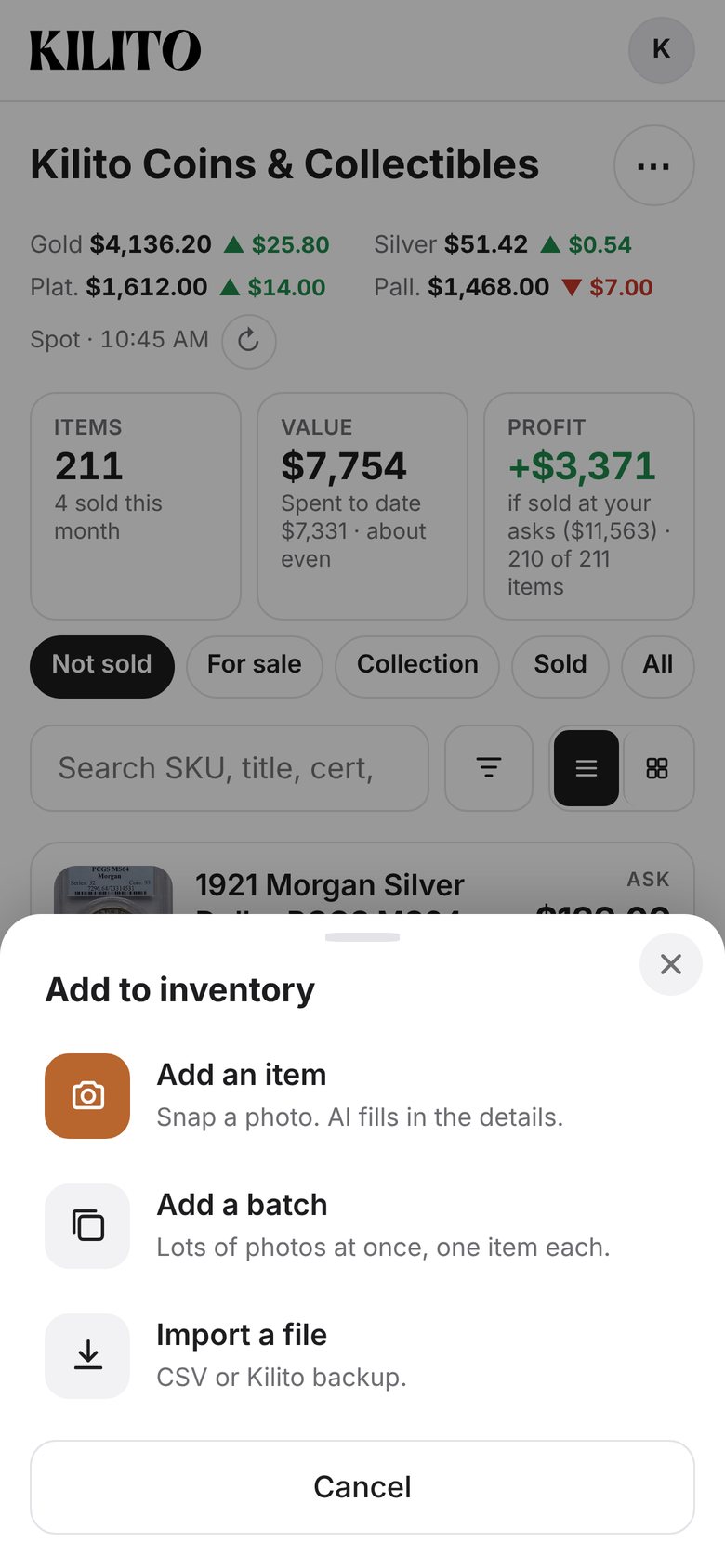
+ (the copper button in the middle): opens a sheet with Add an item, Add a batch and Import a file.
Show (sellers), Manage or Settings: this tab changes with your role and tools.
More: profile, Manage, Settings, Plans & billing, invite a friend, theme, workspaces, Help Center and sign out.
Filters on a phone
Tap the Filter button next to search to open type, value and sort in one sheet. A badge shows how many filters are on.
The row menu
On a phone, Comps, Mark sold and Print label live in each row's ⋯ menu to keep the list clean.
Add to home screen
More → Add to home screen. On iPhone, Safari shows the steps (Share → Add to Home Screen). Kilito then opens full screen from its own orange K icon.
Quick view
Scanning a label or tapping a card opens the quick view: photos, ask, market value and what you paid, with buttons to edit, print or mark it sold.


