Selling
Show Window for live streams
Put a clean coin card on your Whatnot, TikTok or YouTube stream. Coin details and talking points only, never prices.

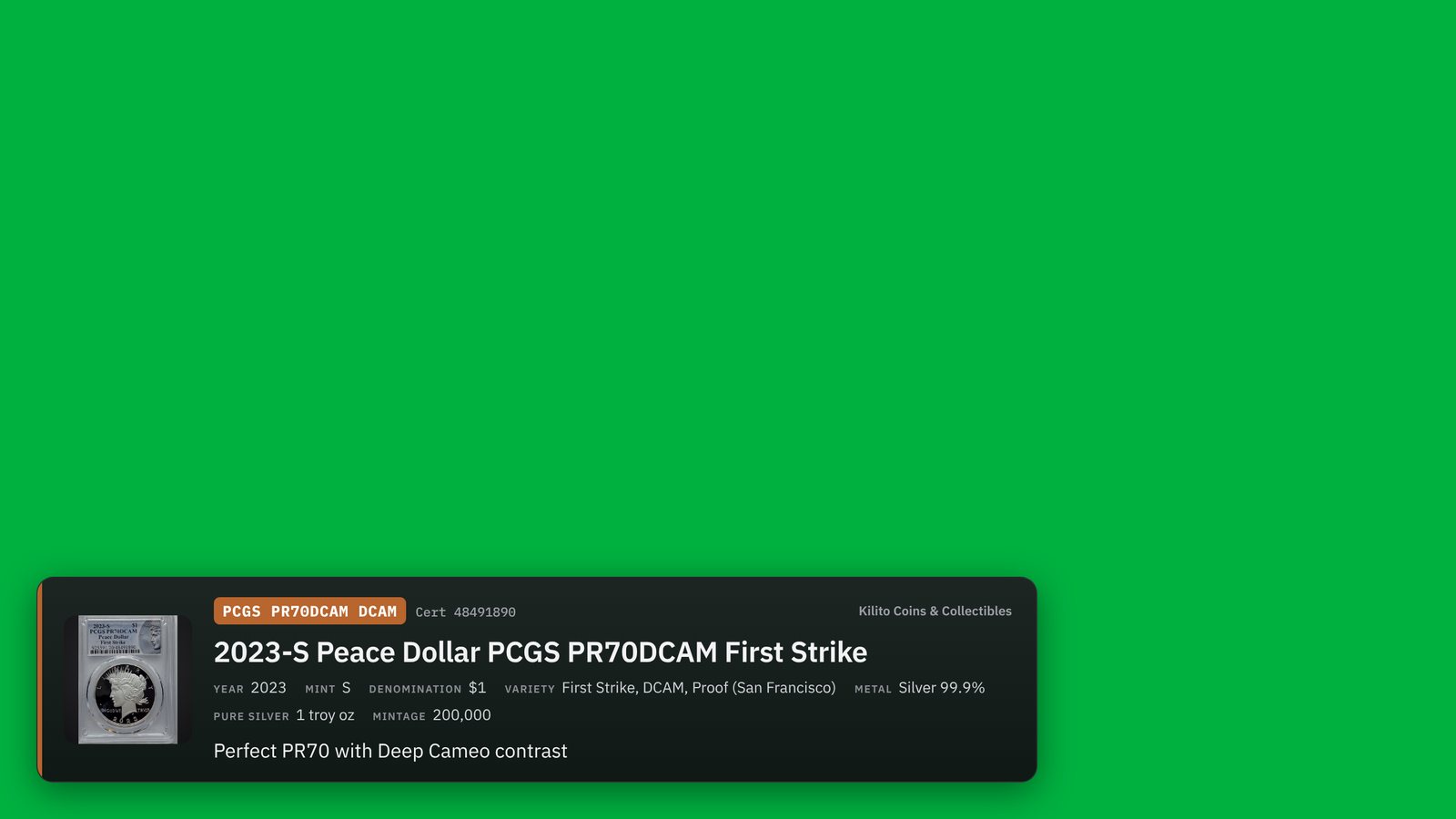
Show Window is a viewer-safe coin card you add to your live stream. When you scan an item in Show mode, it appears on stream with its photo, grade and talking points. No prices are ever sent to it: not your ask, cost, melt or market value.

Turn it on
Open Show mode and tap Show Window.
Tap Open Show Window ↗ for a pop-up window, or Copy stream link for your streaming app.
Scan items as usual. The stream updates by itself.

Add it to your stream
OBS, Streamlabs or TikTok LIVE Studio: add a Browser source, paste the stream link, size 1920 × 1080. Pick Transparent background.
Zoom, Meet or StreamYard: open Show Window and share that window. Pick Dark or Green screen.
Layouts and options
Lower third, Side card or Full screen
Background: Transparent, Dark, Light or Green screen
Toggles: talking points, coin specs (year, mint, metal, mintage and more), up next, buyer name on SOLD, and your grade estimate on raw coins (off by default)
Shortcuts
W hides or shows the card on stream
N moves to the next talking point
Keep the link private
Anyone with the link sees your Show Window. If it leaks, tap Reset link (twice) for a new one.


